


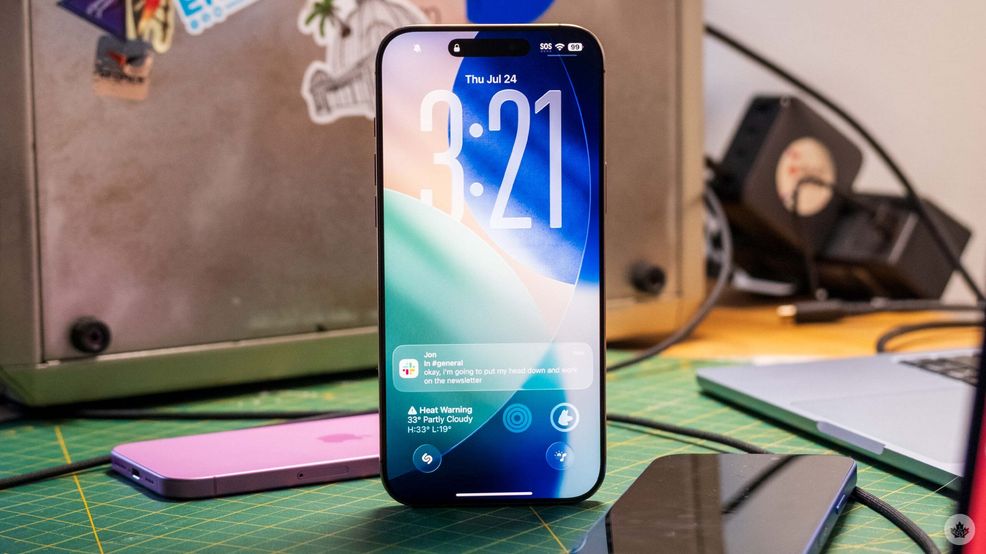
The public beta of iOS 26 is out now and we’ve been testing it. There’s been a lot of publicity surrounding Apple new Liquid Glass design language, but there are also a lot of new functional features that are about to make your iPhone a lot better.
Call screening is the hero I needed
Over the past year, I have been getting spam calls relentlessly — usually twice a day, but always at least once. Since I started testing the beta I still get the calls, but I don’t even notice them come in anymore. For the most part, it seems like the callers just hang up as soon as they hear Siri’s voice.

Since this is still a beta, it’s unclear if this feature will be turned on by default. You can double-check if this is on by searching for ‘phone’ in the Settings app. In that section, scroll down until you get to the ‘Screen Unknown Callers ‘ options. To enable the feature, make sure ‘Ask Reason for Calling’ is selected.
Once you have this turned on, any unknown numbers that call will need to tell Siri who they are and why they’re calling before they will make your phone ring or vibrate. While this is happening, you can see a transcript of the conversation on your screen. This is very similar to how Google has added call screening to Android, and it’s great to have on iOS.
Liquid glass is amazing
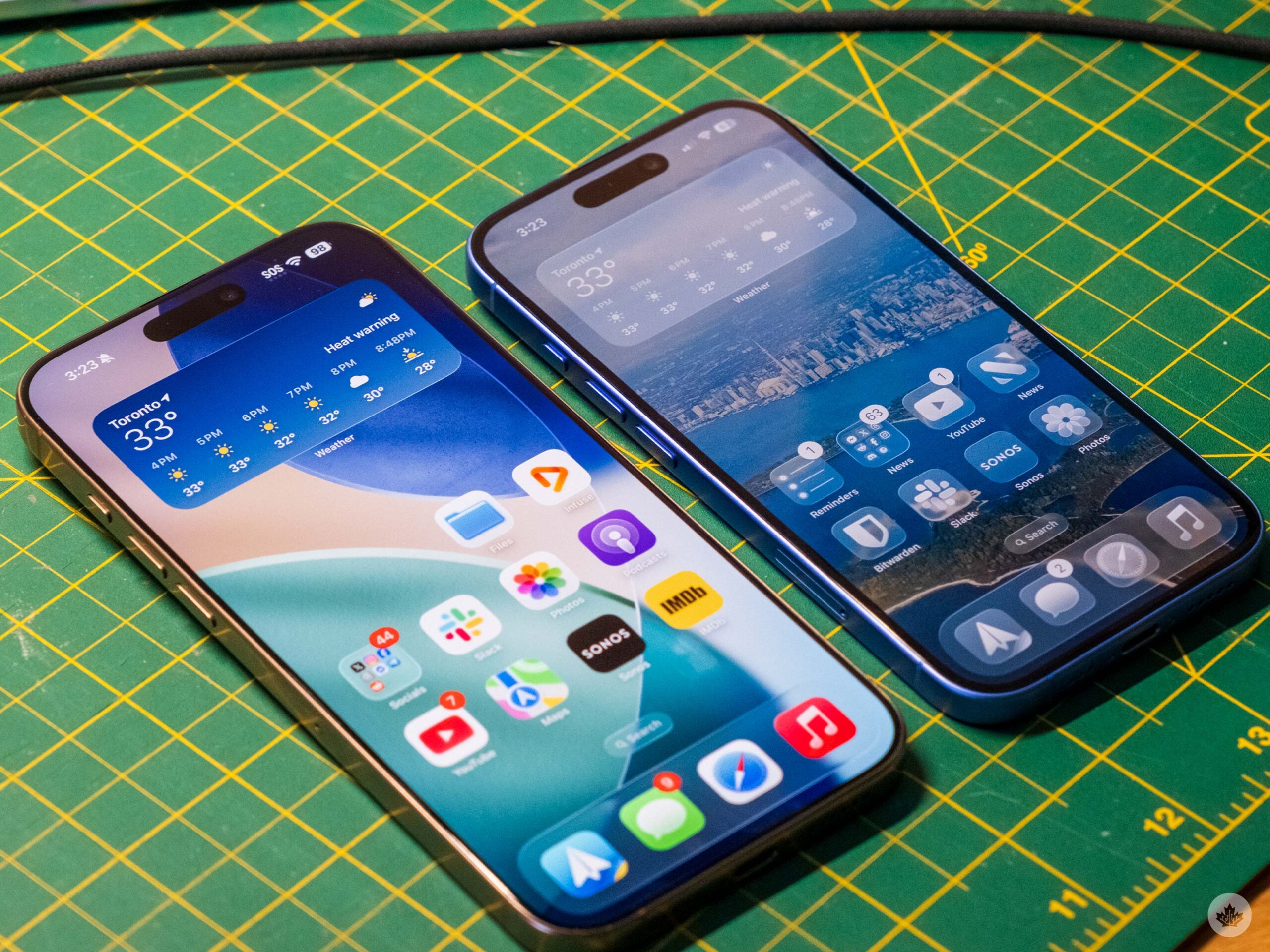
Apple has hit it out of the park with the new visual design. While most of the discussion I see online revolves around how it looks, after using it for over a month, I think the key element is actually the new animations. The way notifications pop down, or how the glass shade lifts off your lock screen, are just pleasing to watch in motion.
It feels a lot more refined in some ways, with the visuals and animations working together in sophisticated harmony. There’s just something about the way things flow that feels really natural when combined with all of the new, clear elements.
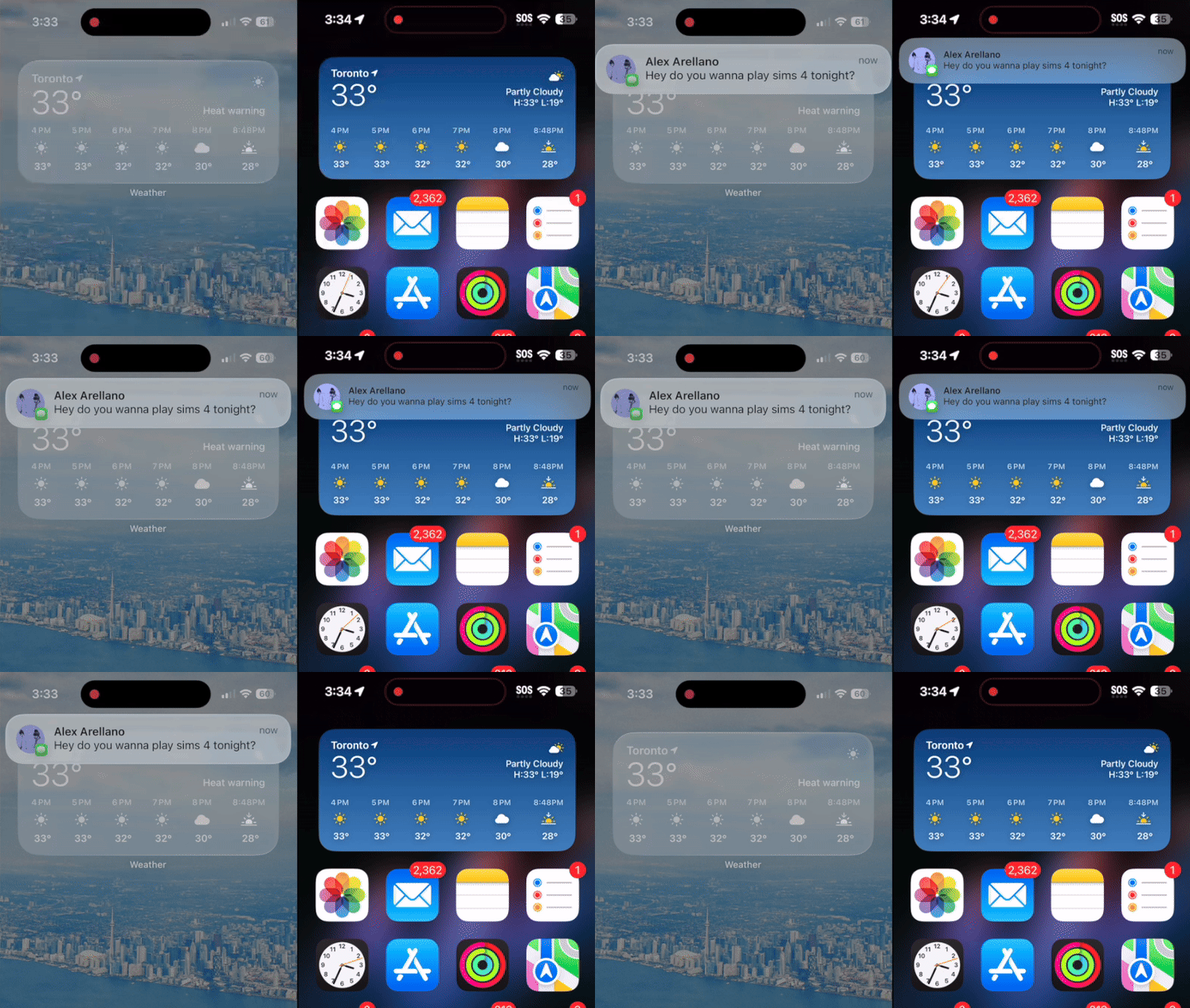
iOS 26 with Liquid glass on the left and iOS 18 on the right.
And the clear elements look awesome. The way they bend and refract light as you move things beneath them is really cool, and every once in a while, it all comes together to look incredible.

For instance, while using the transparent icon pack with my default wallpaper, it looks nice, but when I switch to my bedtime focus mode wallpaper of a long exposure of some cars on a highway, the headlight streaks light up one of my folders, and it looks stunning in motion. Moving the folder to the left and right to watch the lights refract around the Liquid glass icon has become almost like a figit toy to me.
Let’s chat like it’s 2006
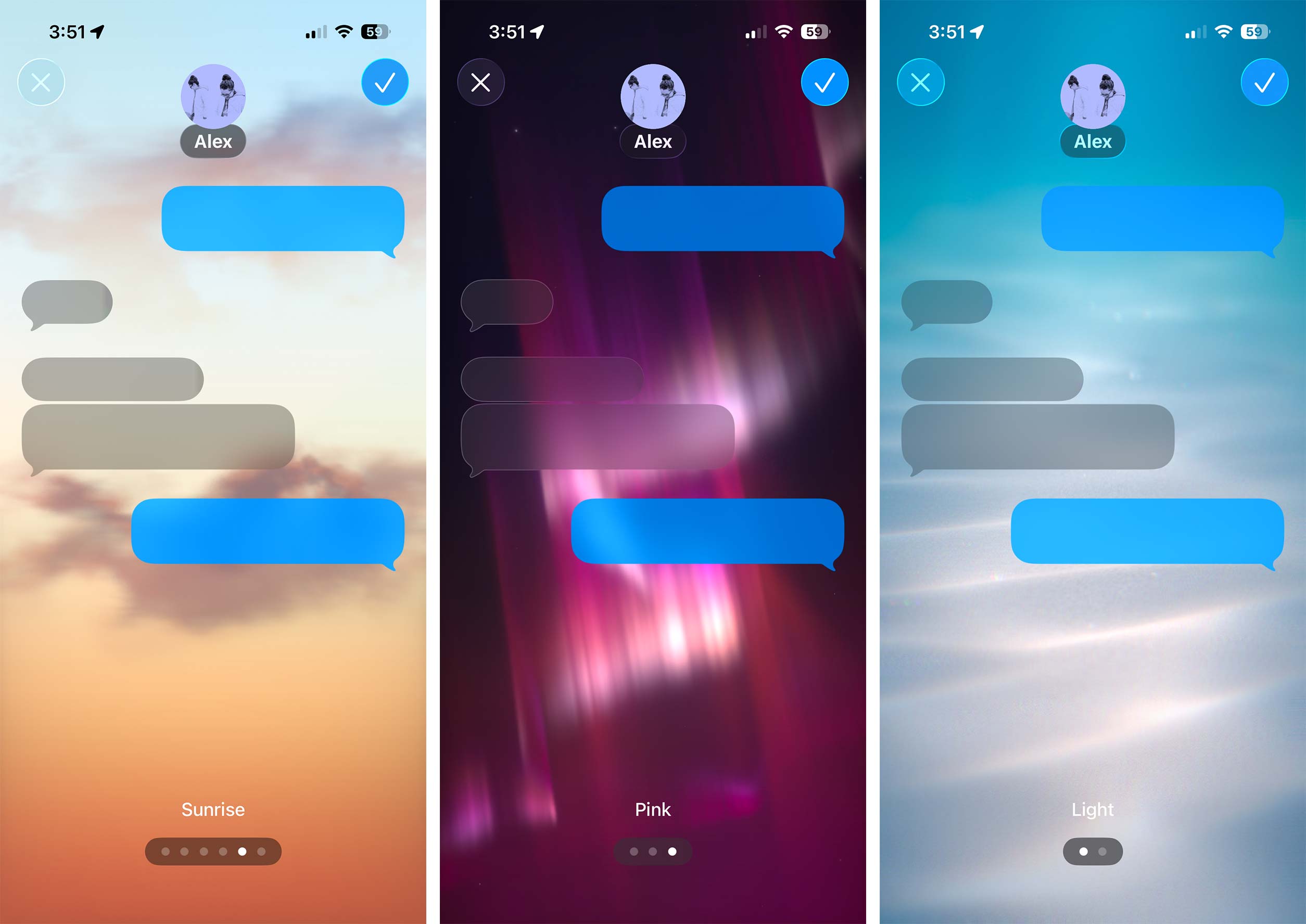
One feature that I didn’t think I’d care much about with the new updates across all of Apple’s products is the new iMessage background. The default Apple ones have subtle animations as you drop tapbacks onto your friend’s messages and move the keyboard up and down.
It’s just a little more fun and whimsical, and makes it easy to differentiate your chats. I can’t quite place my finger on it, but it kind of feels a little more nostalgic to me, especially the water backgrounds. I’m not sure if I used the default Windows wallpapers of fish too much, but for some reason, it reminds me of MSN Messenger in the best way possible.
Reminders smart categorizations
This one will only be a big deal to people who use Apple reminders, but if you do, it’s awesome. With iOS 26 (and macOS/iPadOS 26), you can now use Apple intelligence to automatically sort your lists into relevant categories.
For example, if you’re camping, this can break things up into subcategories for food, safety equipment, camp supplies, tech and more. It’s a really cool little addition to Reminders that I think is awesome.
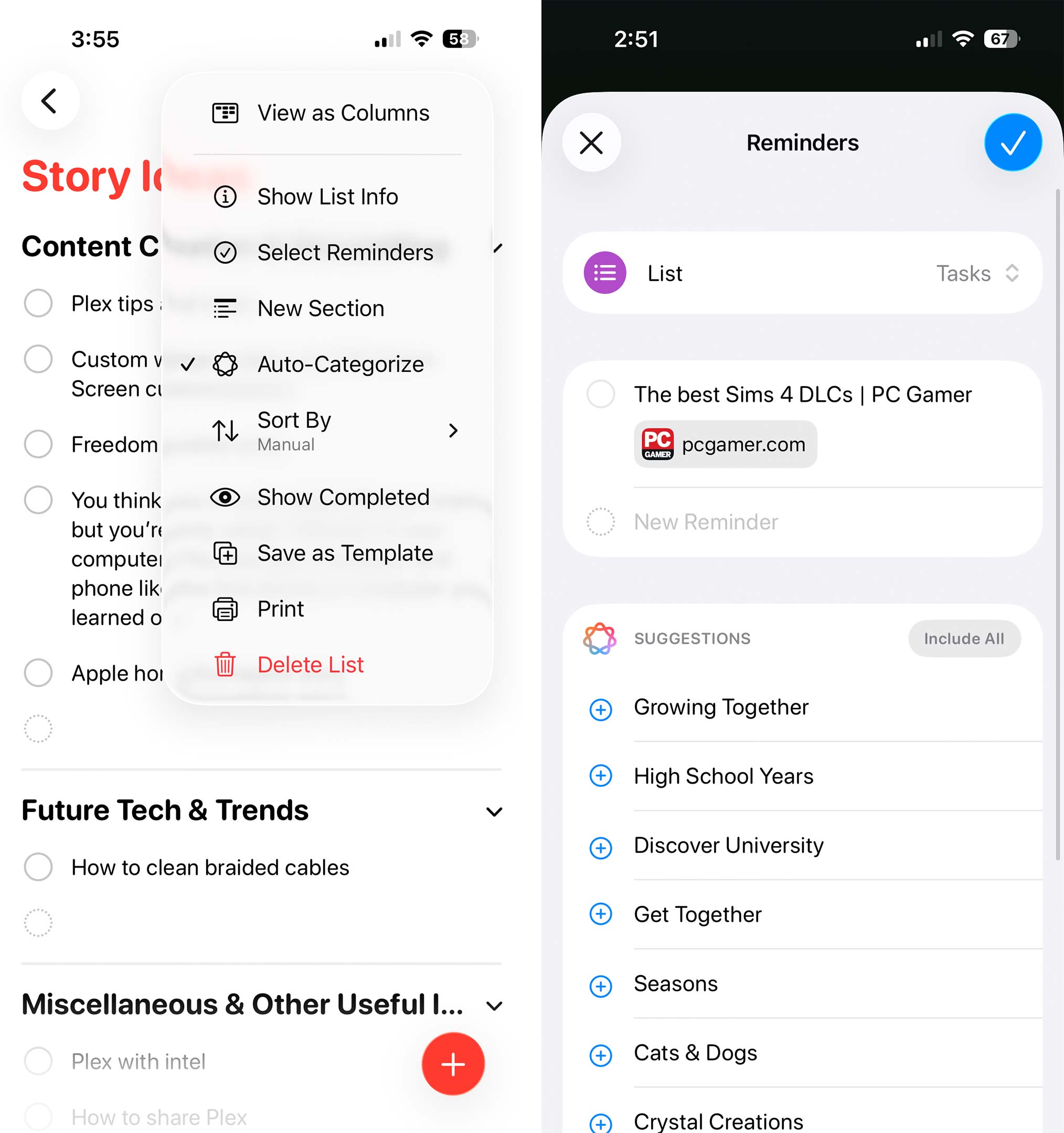
There’s also a subtle extension of this that sometimes works when you share websites to the Reminders app. For example, when I shared this link to a website that’s ranked ‘The best DLC for Sims 4’ to Reminders, it pulled out all the names of the DLC packs and formatted them into a list.
I’ve had hit-and-miss results with what websites or content types this works on, but when it does work, it’s pretty slick.
CarPlay smart screen adapt
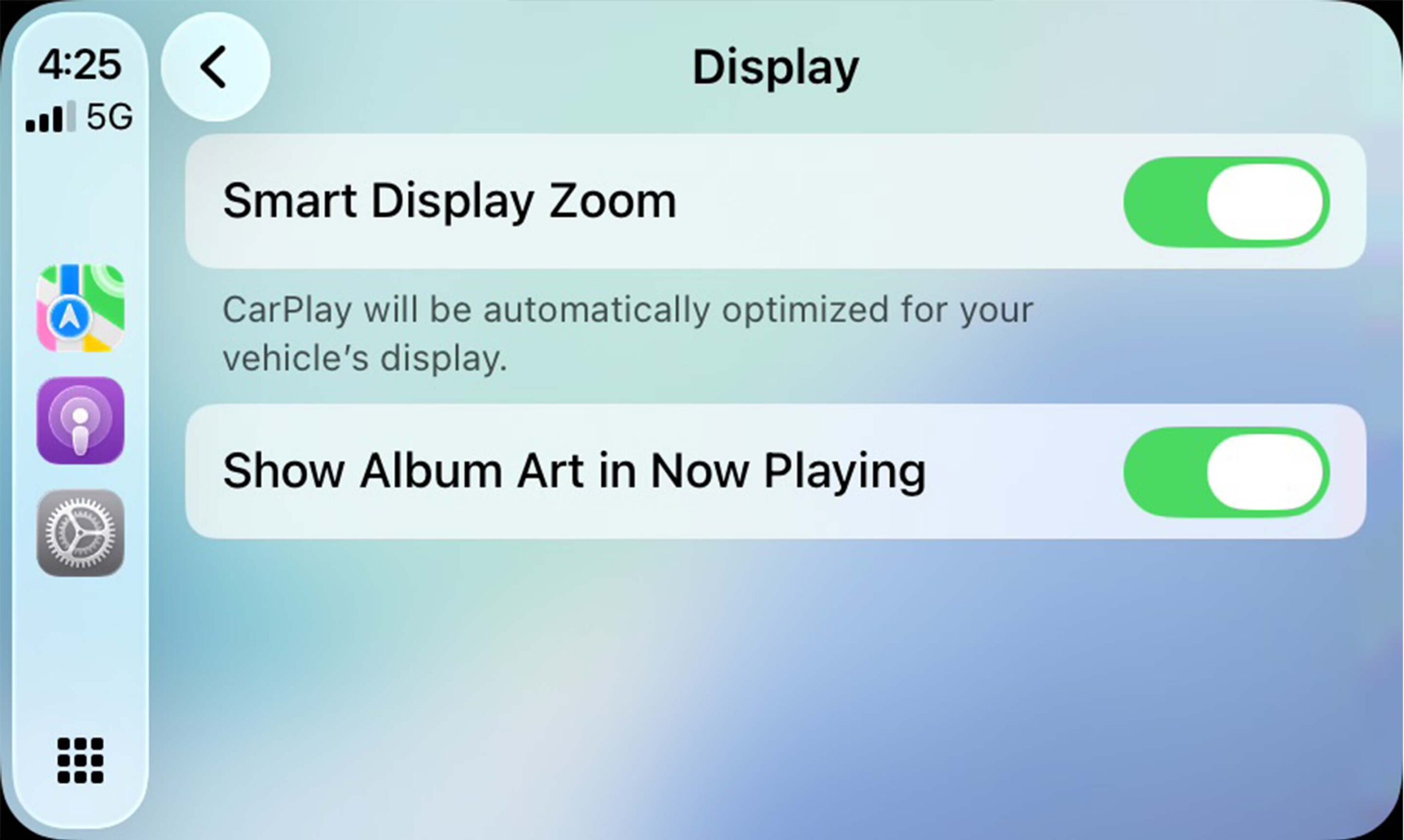
Many features, including widgets, have been added to CarPlay in iOS 26, but the best one is the new option to scale CarPlay to better fit your vehicle’s screen.
For instance, I have a 2017 Jetta, which came out near the first wave of CarPlay-enabled cars, so it has a tiny screen. Whenever I turned on the new ‘Smart Display Zoom’ in the Settings app on the CarPlay screen, it made everything a little smaller, but that meant I could fit more stuff on each screen. Overall, the display looked more natural after using the new feature. I could see this being even more helpful for people with giant CarPlay screens.
There are lots of other features you might like more than these
- Automix in Apple Music allows you to use AI to intelligently crossfade songs. I’ve found this hit and miss, but it’s still pretty cool.
- There are now huge touch targets to snooze or silence your alarm. It makes it so much easier.
- There is a new screenshot interface that’s geared towards using Visual intelligence to learn about what you’re captureing. You can revert this back to the older version if you want. I don’t mind the new version so I’ve kept using it.
- When your iPhone is charging, it briefly says how long until it is recharged above the clock on your lock screen. This new feature is a bit unpredictable and appears more often when your battery is low.
- Speaking of battery features, you now get notifications on your phone when your AirPods are charged or if their battery is low.
- In the battery settings, there is a new Adaptive power mode to help save some extra juice throughout the day.
- You can make any photo into a 3D Spatial scene using AI. It’s pretty fun, but not something I’ve found use for yet.
- In iMessage, you can finally select a portion of text within a chat bubble.
- There is now live translation on phone calls.
- When you’re searching for things in the Photos app, now video clips can appear if they’re relevant
- If your camera lens is smudged, an in-camera alert will tell you to clean your lens.
- If you have an Apple TV and Apple Music, you can use your iPhone as a karaoke.
- You can now transfer ESIM from Android phones during setup
 Gaming
  Features
  Features
  Features