
Google Search ain’t what it used to be.
Over the last few years, we’ve seen Google slowly transform its flagship product from the familiar list of blue links to an AI-infused ‘answer’ machine. And that process is only accelerating — just look at the recent announcements from the company’s annual I/O developer conference.
Google’s vision is an “intelligent search box” that can understand the intent of your query and provide answers pulled from a wealth of data sourced from the web and from the various Google products you use. On the surface, it’s a tempting idea, but it falls apart when you dive in.
It relies on large language models (LLMs), the technology underpinning Google’s own Gemini and other generative AI tools like OpenAI’s ChatGPT. LLMs are still prone to making stuff up — sometimes called hallucinations — which makes them particularly unreliable for finding information. And what Google is trying to do with Search is replace the list of blue links with the information contained within those links filtered through an LLM. It makes it harder to trust the information Google gives you — who knows what alterations or fabrications the LLMs made with the summarization? — and it makes it harder to find where information is coming from.

The list of blue links still exists, as long as you avoid using the company’s ‘AI Mode’ search option, and scroll past the AI Overview Google puts at the top of search results, and all the YouTube video links Google jams into search now (a reminder here that Google owns YouTube, too). Still, the blue links aren’t quite what they used to be — people have complained for years that it feels more difficult to find things on the web because Google Search has gotten worse.
While users might not have much choice when it comes to Google forcing generative AI into search, you do have a choice about which search engine you use. It might not feel that way when Google is so ubiquitous that people use the company’s name to describe looking up information (“Just Google it!”), but you do have a choice. You don’t have to keep using Google, and quitting Google Search isn’t as hard as it might seem.
Meet the alternatives

Replacing Google search is actually kind of easy, once you know where to look. How do I know? I quit Google Search years ago, and haven’t looked back. The hardest part might be picking the replacement. My advice: try out a few options and see what you like.
Below is a non-exhaustive list (in no particular order) of alternate search engines. Unfortunately, many of them have implemented their own forms of generative AI summaries, but some make it much easier to ignore or disable than Google does. And if there’s some other search engine you like that we don’t include below, drop us a note in the comments.
Bing
Ya, ya, I hear you. Bing? Really? Well, it is an alternative, though you’re trading one massive, data-sucking American tech company for another. But it’s worth mentioning because Bing’s API powers several other search engines. (Or at least, it did. Microsoft shut down the Bing API last year, but some bigger search companies reportedly maintained access.)
Having used Bing on and off for years, I don’t think it’s nearly as bad as people say. And while Microsoft has loaded it up with generative AI Copilot features, I find you can get to the classic list of blue links much faster on Bing compared to Google. Sure, it’s not a perfect alternative, but it is an option.
DuckDuckGo
DuckDuckGo is a free search engine that focuses on privacy. It uses its own web crawler along with a mix of other sources to provide search results, including Microsoft’s Bing API, Yahoo, and more. It also has some AI search features and offers anonymized access to some popular chatbots through its Duck.ai platform. But most of this can be turned off and/or easily ignored.
Brave Search
Brave Search comes from the same company behind the Brave web browser. It’s an independent search engine that relies on its own index to power results. It’s relatively new to the space, leaving its beta in 2022. It also offers AI features like generative answers using its own, in-house models, though these can be easily turned off.
Startpage
Based in the Netherlands, Startpage is another privacy-focused search engine that anonymously submits user queries to Google and Bing, then returns the results. You get the classic list of blue links without all the other nonsense. Plus, its AI features are only available in a separate mobile app, so you can use it without AI. It also has some neat other features, like an option to view websites through ‘Anonymous View’ for additional privacy.
Kagi
Kagi is a paid, ad-free search engine that, similar to Startpage, aggregates results from other search engines. It also runs its own web crawler for some searches.
Mojeek
Based in the U.K., Mojeek is another privacy-oriented search engine. It runs its own web crawler index and doesn’t use results from other search engines.
Ecosia
Based in Germany, Ecosia uses profits from search to support environmental goals. It uses its own search index as well as Google and Bing for results. It does offer an AI chatbot powered by OpenAI.
Qwant
French search engine Qwant focuses on privacy. It has its own web index, though it does fall back on Bing occasionally.
Yahoo
Yes, Yahoo Search is still around, though these days it uses Bing to generate results.
Fix your defaults
Okay, now that you have some ideas about which search engine to use, the next step is to use it. That means making it the default option wherever you go to search the web, be that your web browser, your phone, or something else. There are far too many options out there for me to go through them all, so instead I’ll touch on the popular ones (and in most cases, the less-popular options work similarly).
On your laptop or desktop
If you’re reading this, chances are you’re using Google Chrome or Apple Safari. And if you aren’t, you’re still probably using a browser that’s based on Google Chrome, or you’re using some variant of Firefox. Regardless, the process of changing your search engine is mostly the same, though the exact steps might look different.
On your web browser, you’ll want to click the menu in the top-right corner and select Settings. Then, in the settings menu, look for a section called ‘Search.’ On Chrome, it says ‘Search engine.’ On Edge, it’s ‘Privacy, search, and services.’ In Firefox, it’s ‘Search.’ On Safari, you need to click Safari > Settings in the menu bar to get the settings instead.

You can access the settings on most browsers via the menu in the top-right corner. Image credit: Google
Once you’re in the search menu, look for the option to change the default search engine. There should be a drop-down list of alternate options you can select.
If your search engine of choice isn’t in that list, most browsers have options for adding a search engine. Look for an ‘Add’ button — you’ll then need to put in the URL of the search engine. In some cases, you can also manage search engines directly from the address bar itself.
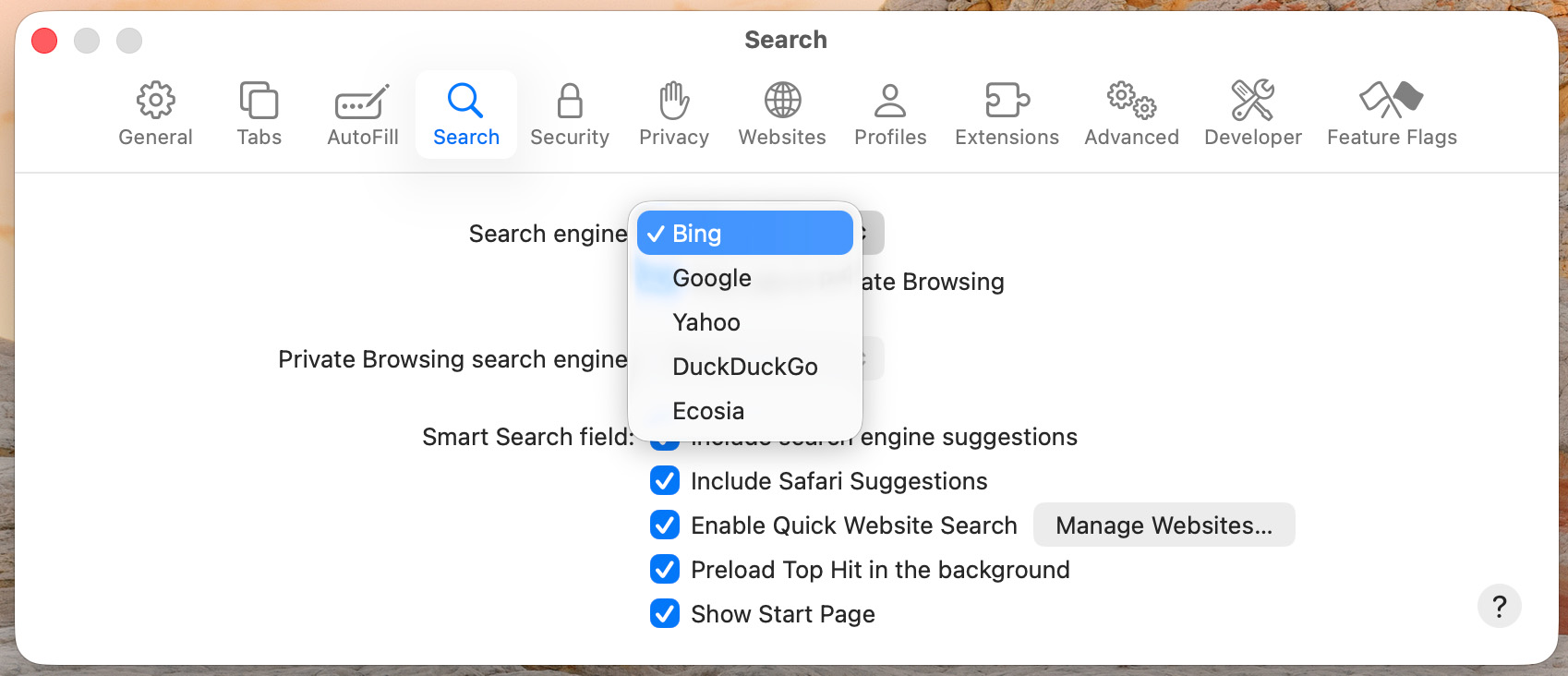
Alternatively, some web browsers will detect when you use a search engine and offer to add it for you, and some search engines will prompt you to add them to your browser with a click. In some cases, you may also be able to install an extension to change your search engine. For example, when I opened Qwant on Firefox, Qwant showed a pop-up to get its Firefox extension, which would set it as my default.
In my testing, most search engines will offer some sort of support for adding them to your browser when you visit the page, whether through a prompt or a button to add it to your browser.
On your phone
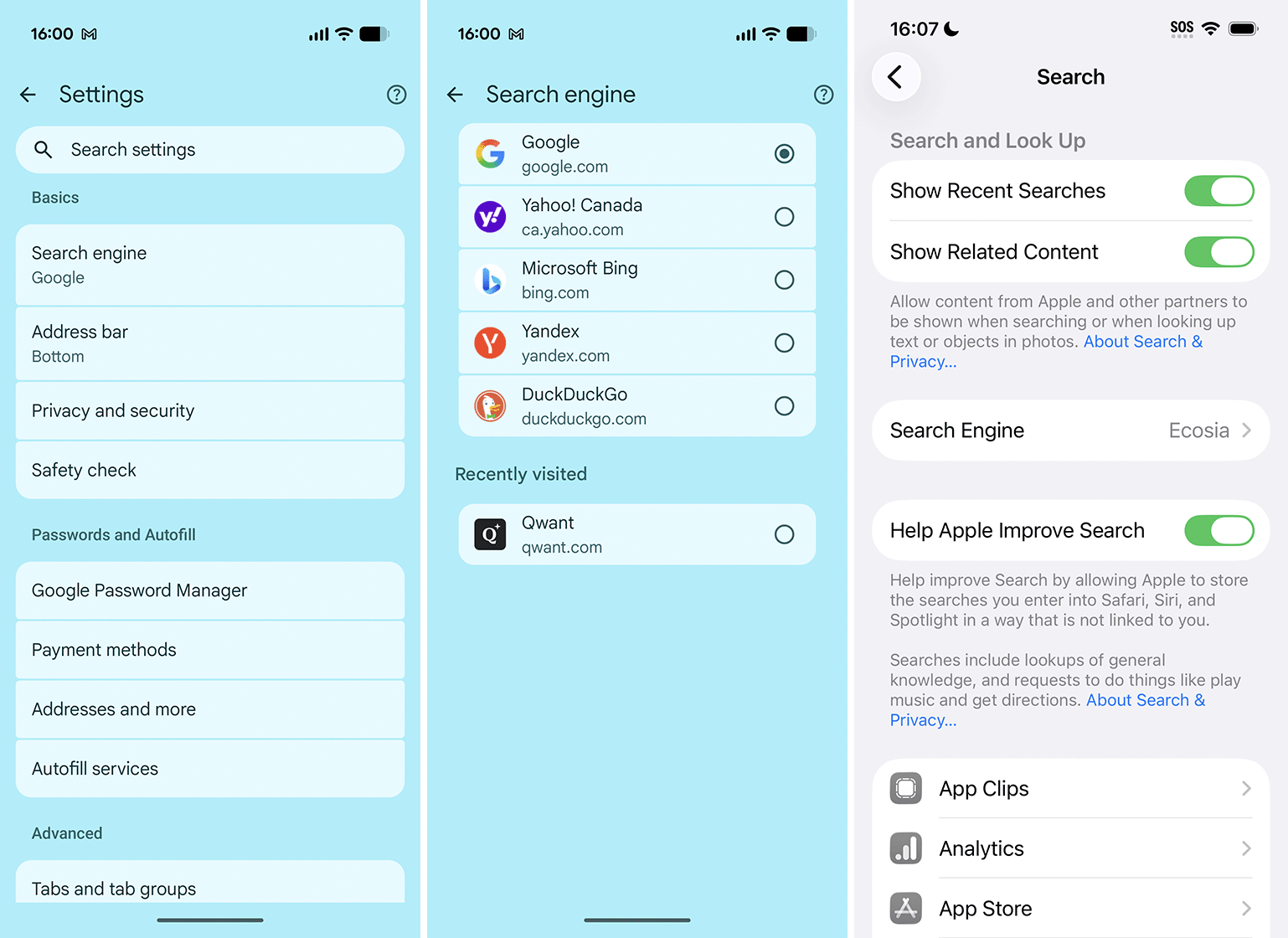
Changing the default search on Chrome for Android (left, middle) and Safari on iPhone (right).
For the most part, changing your search engine is a similar process on your phone. Just like on a laptop, you’ll open your browser and access the settings menu (e.g. on Chrome, tap the three-dot menu in the top-right corner, then tap Settings). From there, locate the search menu and make changes.
However, if you want to add a custom search engine, things can get a little weird. Some browsers, like Firefox, will let you add custom search engines just like on desktop. Other browsers, like Chrome, don’t. Instead, Chrome will add any search engine you visit manually to the list. However, in my testing, you have to make a search first before Chrome will show it.
Safari users, however, need to dive into the Settings app to change the search engine on their iPhone or iPad. Confusingly, there are two different default search options, and changing one also changes the other. The easier one to access is in the Search menu, but you can also find an option in Settings > Apps > Safari. Unfortunately, there doesn’t seem to be a way to add additional search engines not included in Apple’s list, but some users have found success using apps like Customize Search Engine to change it. I haven’t tried this myself, so your mileage may vary.
Everything else
That should cover the big stuff, but you’ll likely find Google Search hidden away in plenty of places on your tech. It’s commonly the default option, and if you don’t try to change it (or don’t know how), it’ll just continue being the default. In some cases, you can’t change it. I use a Google Pixel as my main phone, and there’s very little I can do to change the built-in search bar to not use Google, so I generally just don’t use it at all.
It’s also worth pointing out that Google Search is only one part of a larger suite of products, many of which are also getting the AI treatment. If you’re not a fan of that, it might be time to explore alternatives to other Google products, too. It won’t always be easy to quit Google apps, but there’s almost always an alternative if you know where to look.
MobileSyrup may earn a commission from purchases made via our links, which helps fund the journalism we provide free on our website. These links do not influence our editorial content. Support us here.