With Spotify increasing its prices in Canada yet again, you might be looking to cancel it or switch to a different streaming service that could save you a couple of bucks. With that in mind, here’s how you can do it and keep your playlists.
Cancel on the web
To remove your subscription online, first click your profile icon in the upper right-hand corner, then click account, which will take you to a separate window.
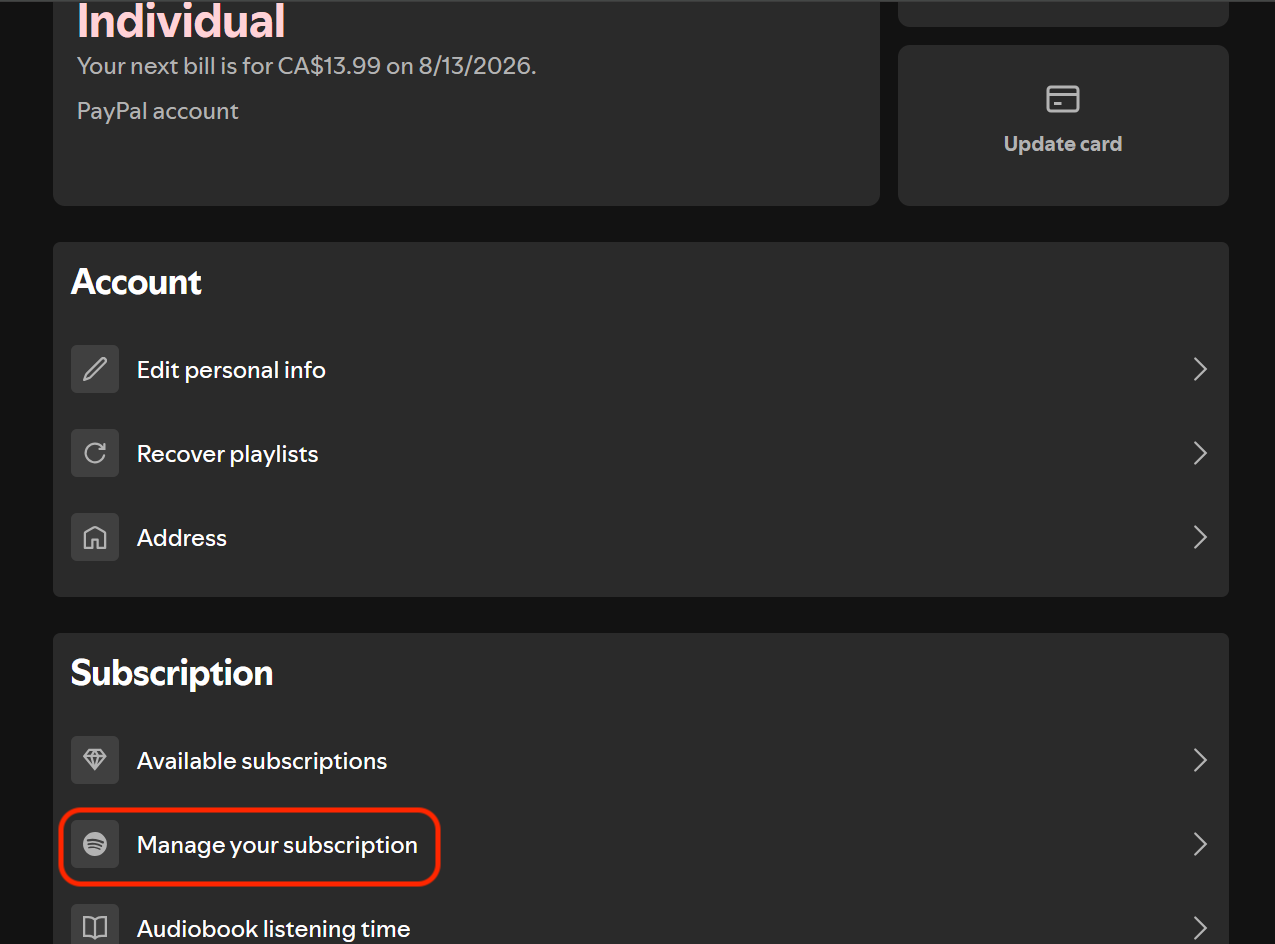
From there, you will need to scroll down to the Subscription tab, click Cancel Subscription, and you will be prompted with an “Are you sure?” menu. Click continue to cancel. From there, you will either end your premium service immediately if you are on a trial, or retain the premium benefits until the next billing cycle.
Cancel on mobile
This one is a bit confusing and does cause some frustration in forums from time to time. Essentially, you cannot cancel directly through the app — the only thing you can do to manage your subscription is switch subscription tiers.
If you want to cancel through an Apple device, there is a little bit of bad news: Spotify no longer supports managing your subscription directly through iTunes or Apple. Instead, my best recommendation is to log in to Spotify’s website using Safari (or whatever web browsing app you use on your iPhone/iPad) and follow the steps I shared above for cancelling online.
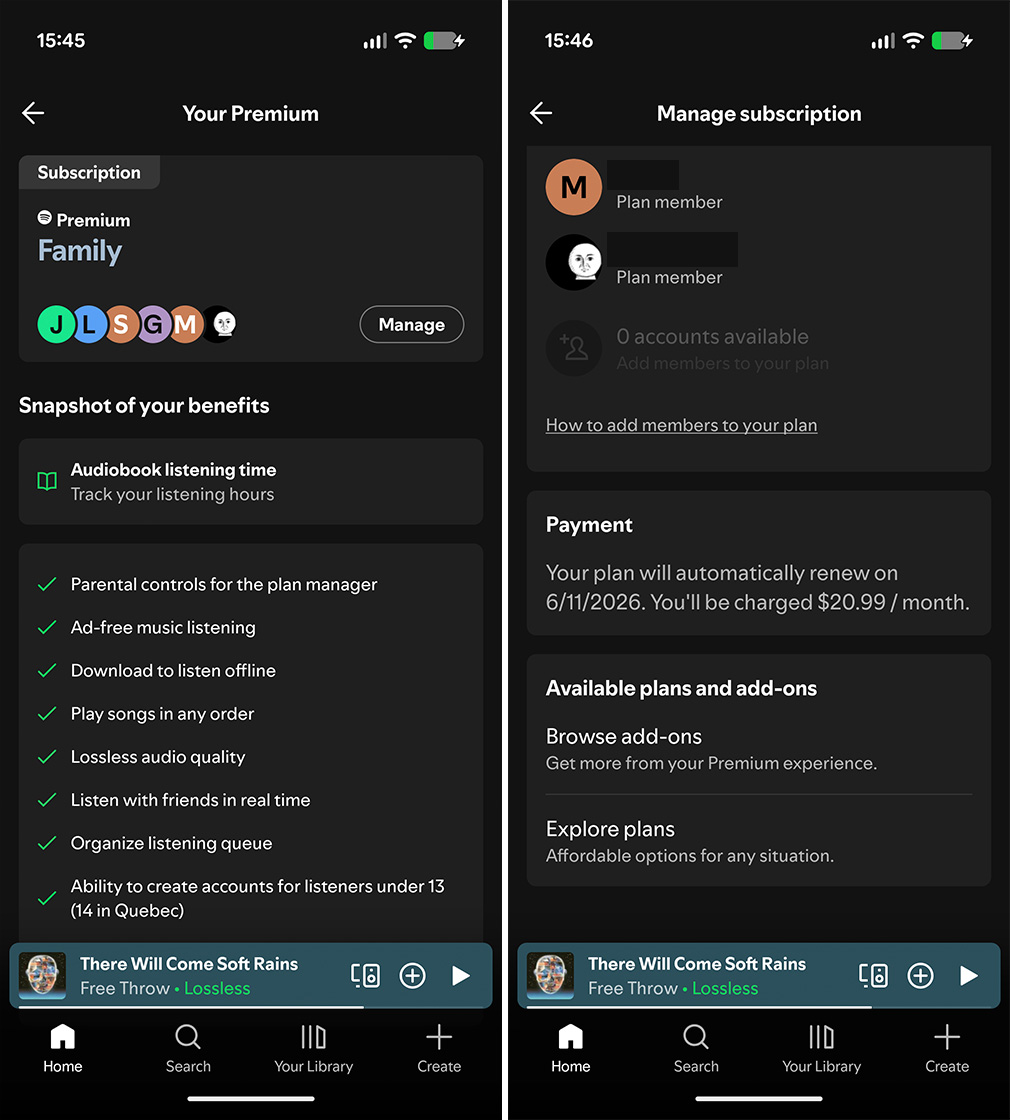
On Android, you can manage your subscription through Google Play if that’s what you use for billing, but if you don’t, you’ll need to head to the web to cancel as well.
For those using Google Play billing, head to the Play Store and tap your profile icon in the upper-right-hand corner, tap on payments and subscriptions, find and tap on subscriptions, find and select Spotify among the list of active subscriptions, hit cancel subscription, and then follow the prompts.
Now, if you can’t find your Spotify subscription on your Apple or Android device, it is best to log in on the web and cancel it that way.
Transferring your playlists to a new service
Now, you can’t transfer playlists directly from one music streaming app to another. Instead, you will either have to rely on using a third-party service or go to the new music streaming service of your choice and use its transfer feature if it has one.
However, if you do want to use a third-party transfer service, I highly recommend TuneMyMusic, since most music streaming apps (Tidal, Deezer, and YouTube Music, to name a few) already use it for their ‘first-party’ playlist transfers anyway. Now, TuneMyMusic does have a paid limit, but if you are using it as part of a streaming service, the limit is waived, and you can import directly from your library.
Outside of TuneMyMusic, there are a few more tools out there:
These can help you transfer your playlists and minimize the friction of starting fresh with a new streamer.
MobileSyrup may earn a commission from purchases made via our links, which helps fund the journalism we provide free on our website. These links do not influence our editorial content. Support us here.