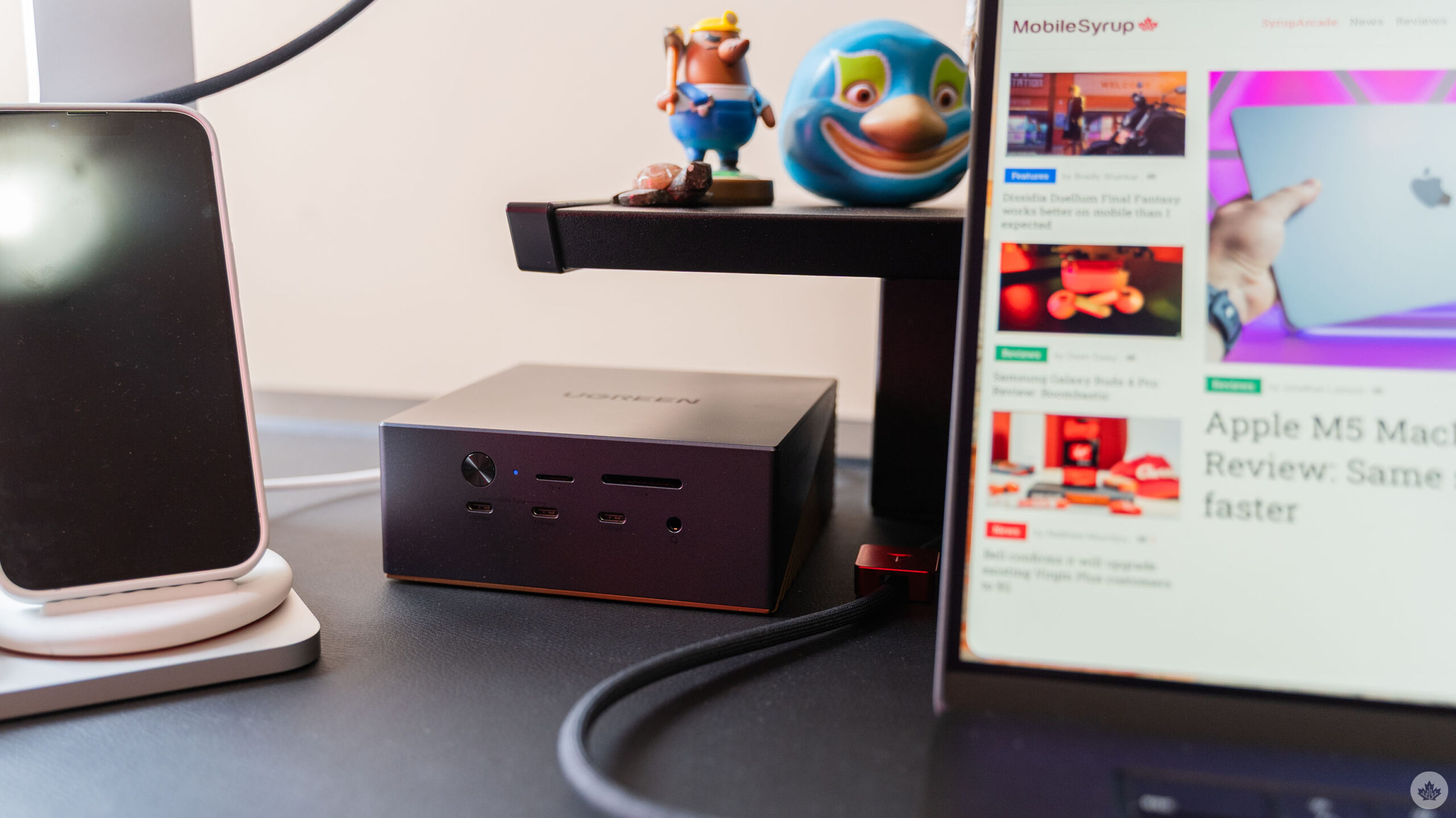
I’ve been a longtime user of Ugreen’s docks. They’ve made fantastic additions to my home office, allowing me to set up a system where, with a single cable, I can connect my laptop to additional monitors, a keyboard and mouse, my camera, and more. So when Ugreen reached out about its newest docks, I was pretty excited.
Ugreen has two new docks, dubbed Maxidoks, boasting support for Thunderbolt 5, up to 8K displays, tons of ports, and more.
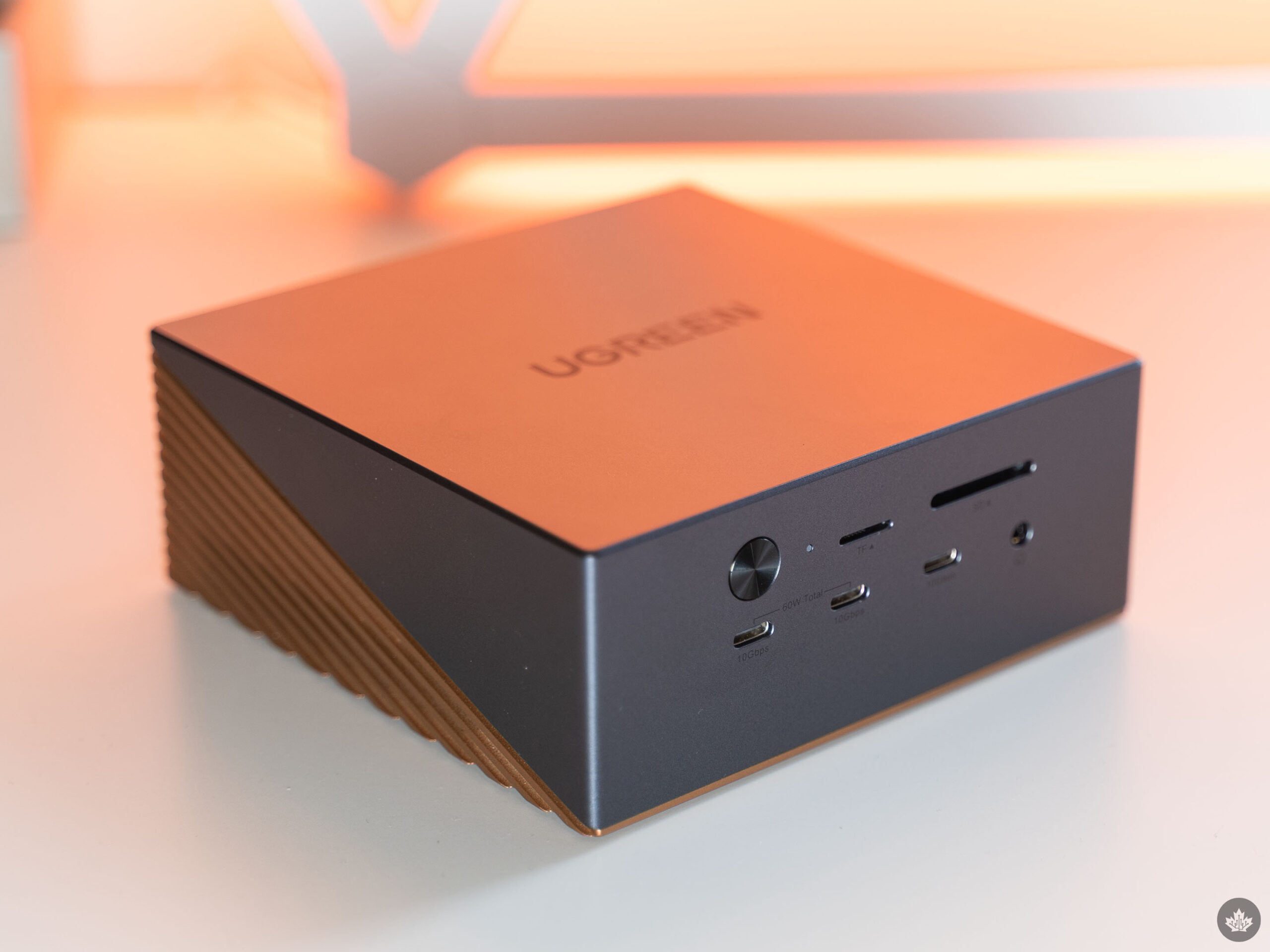
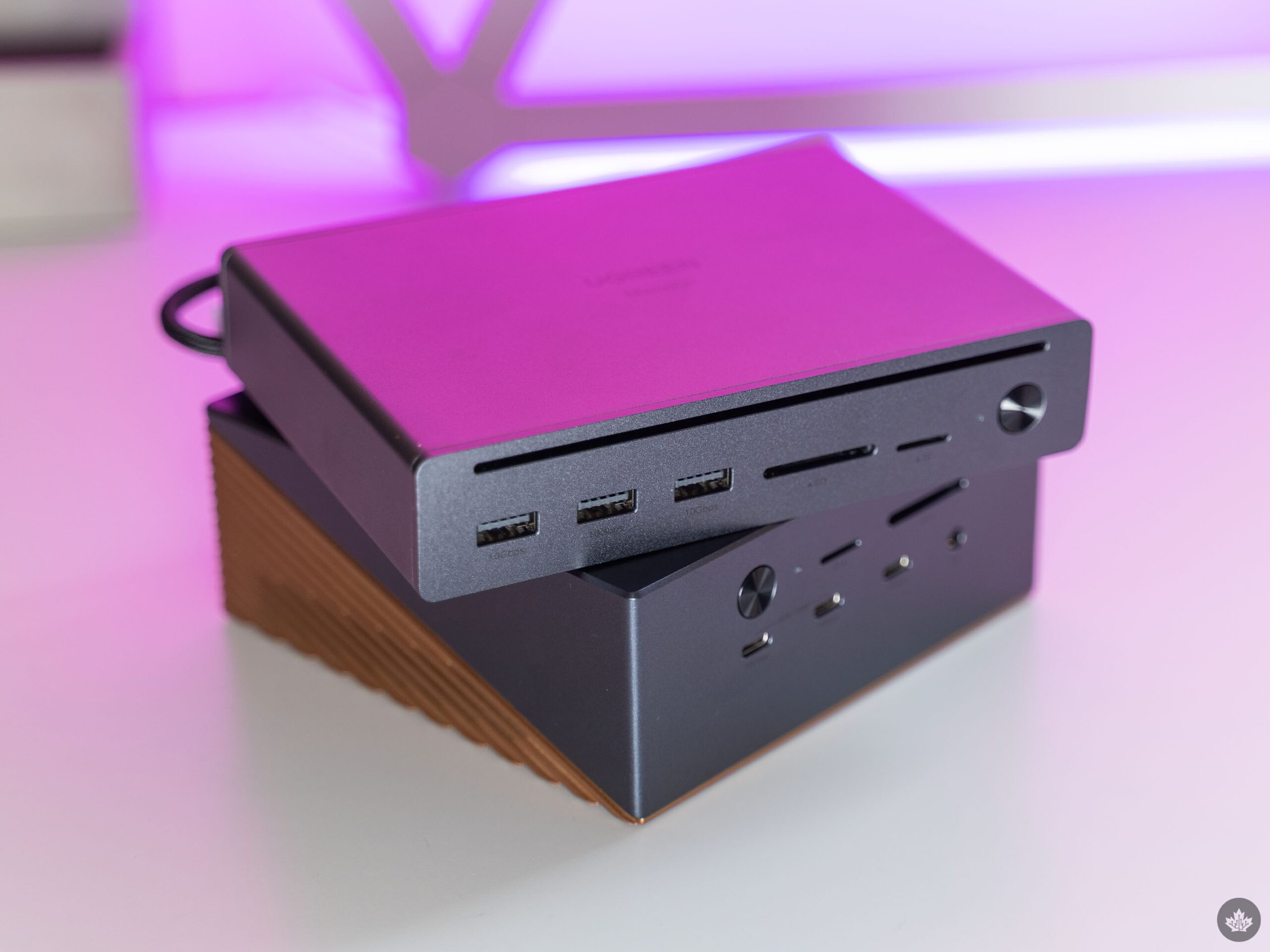
First up, there’s the Ugreen Maxidok 17-in-1. This docking station clocks in at about the same size as a Mac mini and has a ton of options for connecting your gear. Around front, there’s a power button, slots for SD and microSD cards, a 3.5mm audio jack, and three USB 3.2 Type-C ports (two of which support total max charging of up to 60W PD).
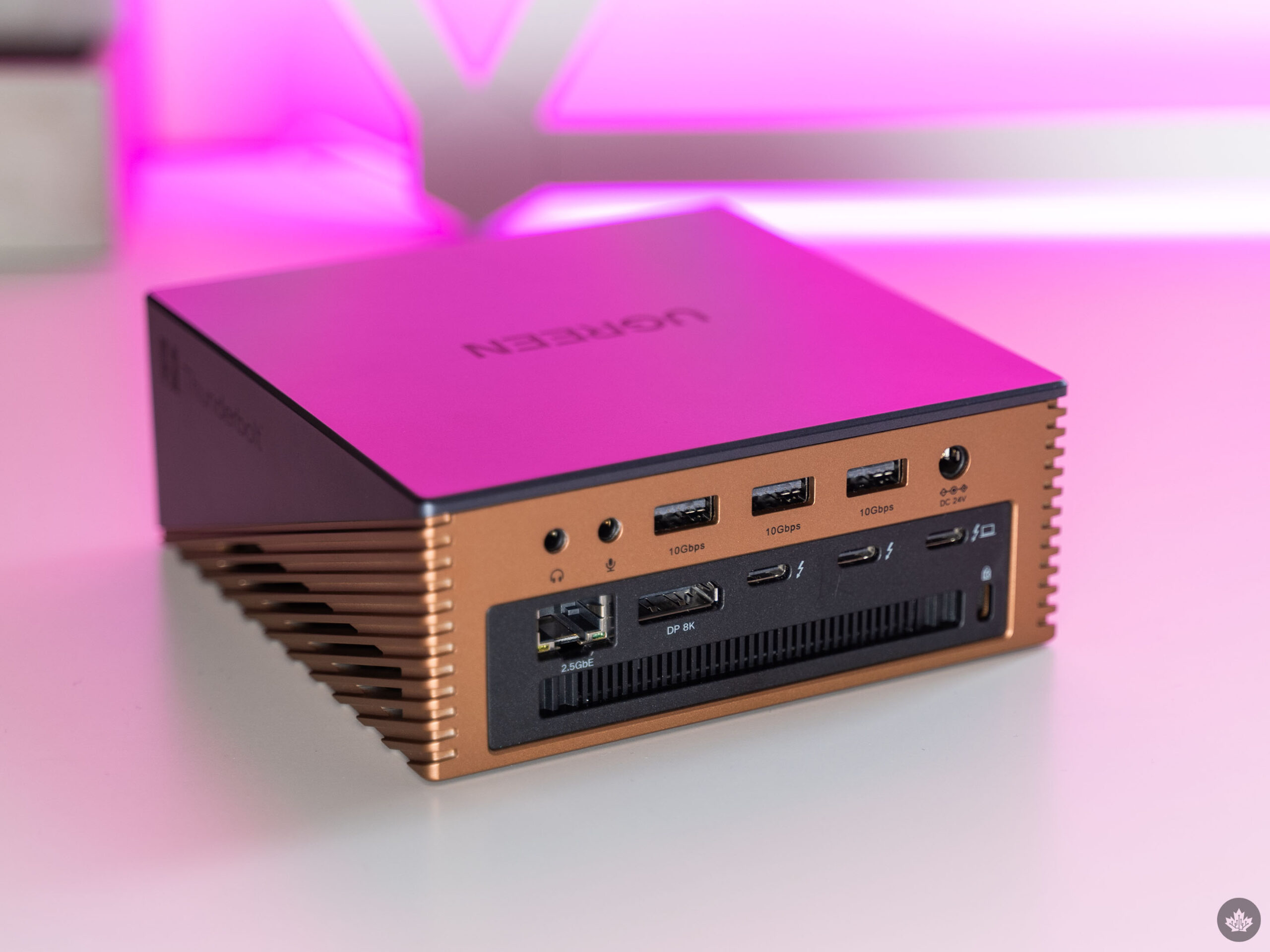
On the back, the 17-in-1 dock has a DC input for its power supply, three Thunderbolt 5 ports (one to connect to your laptop with support for up to 140W PD charging), three USB 3.2 Type-A ports, two 3.5mm jacks, one DisplayPort, and one Ethernet port. Finally, there’s a slot to add an M.2 SSD on the bottom, allowing the Maxidok to double as an extra storage drive.
Despite the impressive list of ports, the Maxidok has a major flaw here. You might have noticed that the list doesn’t include HDMI, which could throw a significant wrench into your desk setup if you’re anything like me.
See, I share my monitors between my work laptop and my gaming desktop. And my main monitor only has three ports — two HDMI and one DisplayPort. That single DisplayPort is already in use with my gaming desktop, which meant for years I used an HDMI cable with my dock. But the Maxidok doesn’t have that option. Thankfully, I had a USB-C to HDMI cable on hand, though that cable brought its own issues along. (For whatever reason, the MacBooks I’ve been testing lately really don’t like it and won’t output the right resolution to my display over that cable. But on Windows, everything works fine.)
It’s not a huge dealbreaker, but definitely something to keep in mind if you rely on HDMI for your setup. Perhaps Ugreen can add an HDMI port for the Maxidok 2.
HDMI hiccup aside, the 17-in-1 Maxidok has been fantastic for me. It allows me to easily connect two displays to my work laptop, and it makes it very easy to connect other things as well. I love having a central hub for everything, especially since I change laptops regularly as I review them for work, so having a setup that works great across tons of devices is fantastic.
The built-in power delivery really helps with this. I was hesitant to use docks that have their own power source for a while, preferring instead to use simpler docks and whatever charger I had on hand, though it meant sometimes using a charger that was too slow for the laptop I was reviewing. But the Maxidok’s 140W charging is more than enough for most laptops, and helped clear up some of the clutter on my desk.
Finally, it’s worth noting the Maxidok sports active cooling to help keep temperatures under control. I didn’t notice any obscenely warm temperatures in my time using it, but it definitely got warm during heavy use.
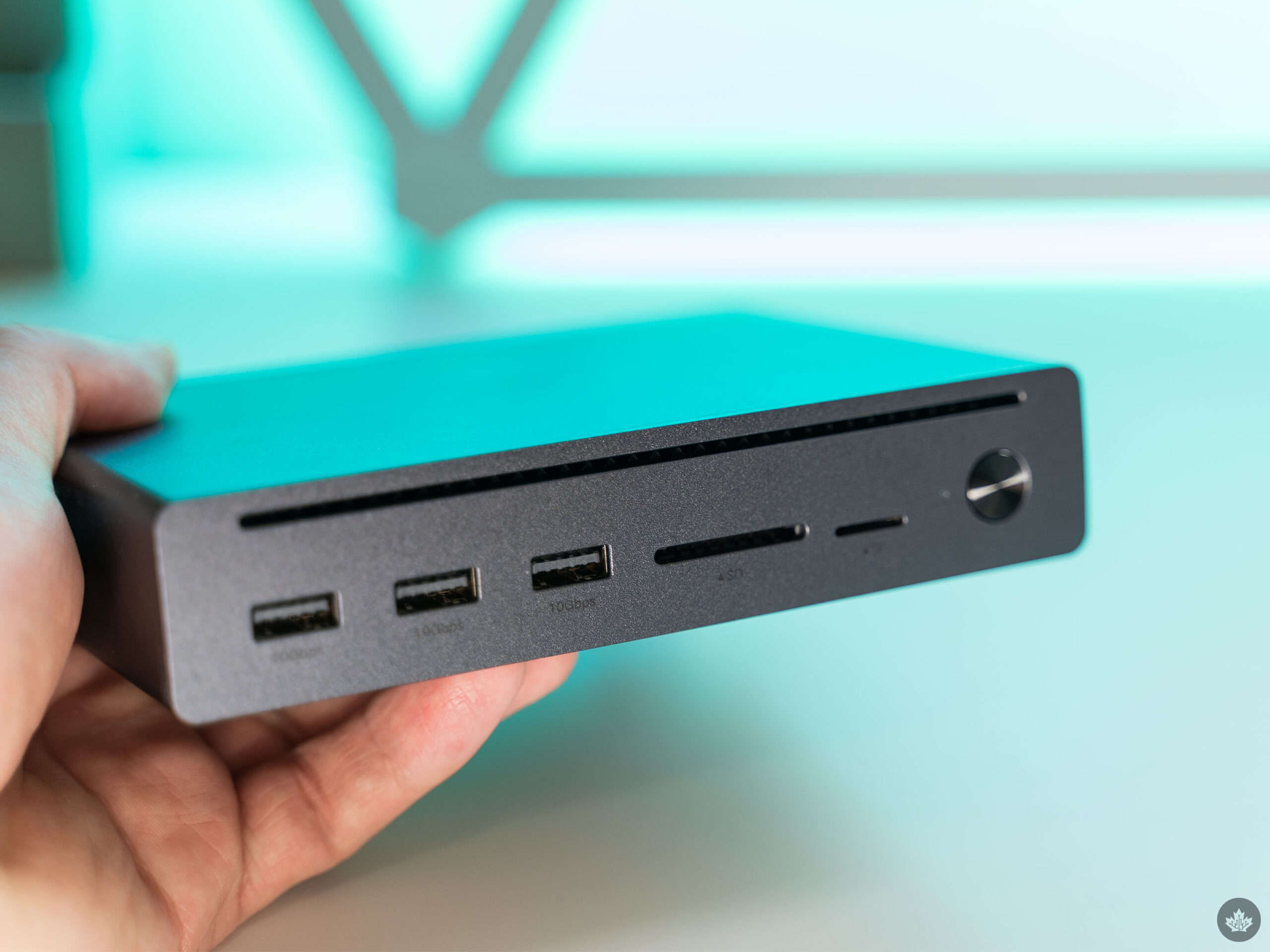
Alongside the 17-in-1 Maxidok, Ugreen sent me a 10-in-1 version. There are a few core differences between the two docks, though for the price difference, I think the trade-offs make a lot of sense.
First, the 10-in-1 has a built-in Thunderbolt 5 cable for connecting to your computer. It supports up to 110W charging, which should be ample for most laptops. Along with that, it has two Thunderbolt 5 ports, a DisplayPort, an ethernet port, and a DC power port for the dock along the back.
Around front, the 10-in-1 dock sport three USB 3.2 Type-A ports, and SD card slot, microSD card slot, and power button. Overall, you lose out on some ports, the SSD storage, and the active cooling. Again, I think these are fair tradeoffs, though I think I’d prefer to see the 10-in-1 dock trade one of the USB-A ports for another USB-C port.
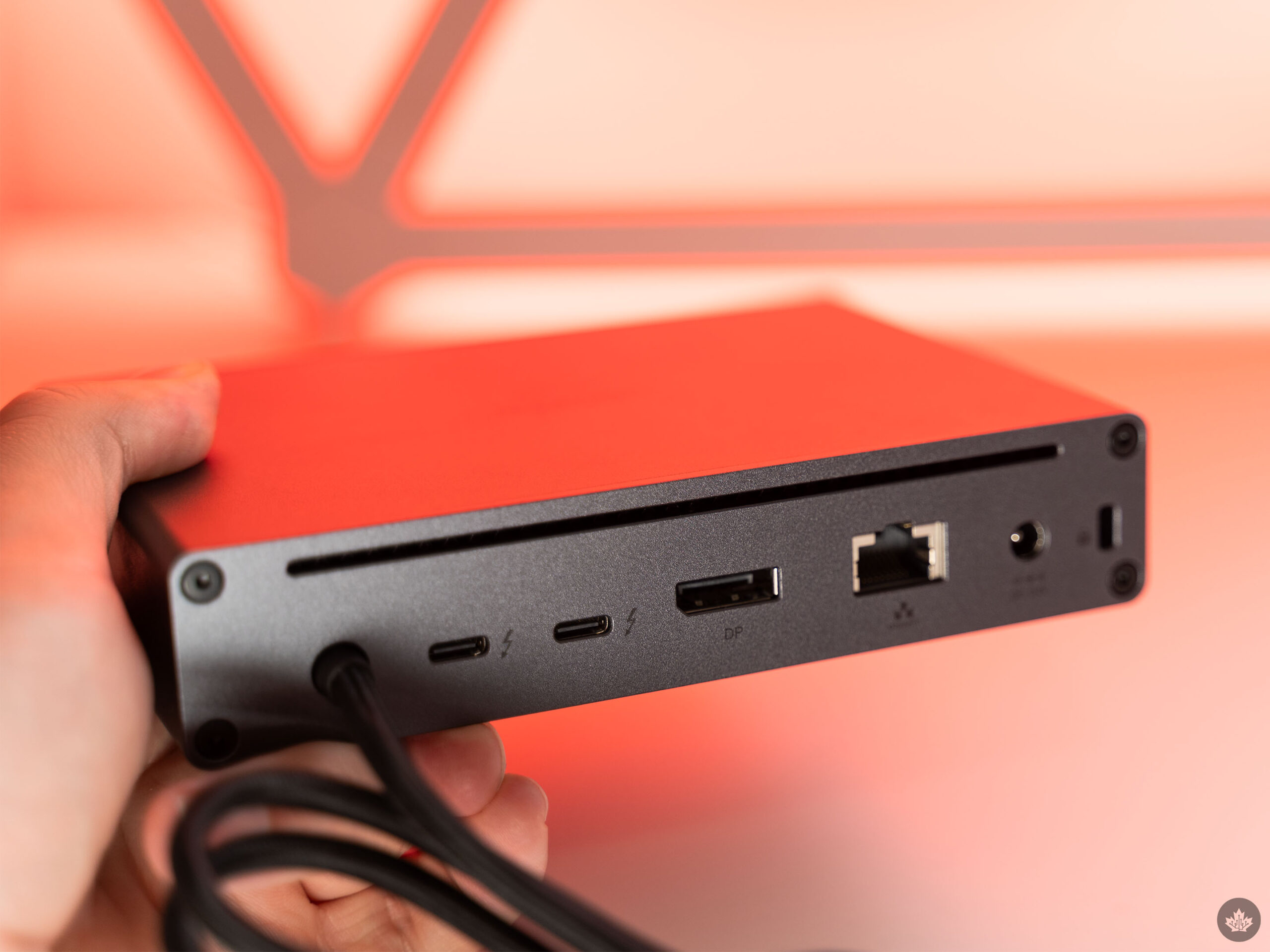
Both docks can handle the same display options as well. On Windows, the Maxidoks can handle up to three additional displays, while on macOS, it can handle up to two displays. However, the number of displays, as well as the resolution and refresh rate, will ultimately be determined by the chip in your computer.
In my case, I had the Maxidok hooked up to an Apple Studio Display (5K resolution) and an LG OLED display (1440p resolution). On some devices with weaker chips, like those with the Snapdragon X Plus, I could only output to one display at a time, while more powerful laptops could output to both without issue (excepting the aforementioned issues with macOS and my USB-C to HDMI cable)
Overall, I quite like the Ugreen Maxidok. Both the 17- and 10-in-1 docks offer a ton of ports enabling various multi-monitor desk setups, and they work great with both Windows and Mac. My only major complaint is the lack of an HDMI port — for me, it’s a pretty major miss in a docking station.
If you’re interested in buying a Ugreen Maxidok, you’ll need to go through Amazon for the time being. (At the time of publication, Ugreen’s Canada site didn’t list either dock, though I imagine that will change eventually.)
For now, Amazon has both. The Maxidok 17-in-1 retails for $549, while the Maxidok 10-in-1 retails for $329. Further, at the time of writing, Amazon had a coupon available for both docks ($70 off for the 17-in-1, $30 for the 10-in-1), which expires on April 1.
MobileSyrup may earn a commission from purchases made via our links, which helps fund the journalism we provide free on our website. These links do not influence our editorial content. Support us here.